
How to hide patient information in DICOM
Teaching, paper figures and consultation screenshots usually need patient information removed first. There are two very different levels of doing this — know which one you need.
Display-level is not file-level
| What it does | Use it for | Is the original file changed? | |
|---|---|---|---|
| Display level | Patient information is no longer shown on screen | Teaching, paper figures, consultation screenshots | No |
| File level | Privacy-bearing tags are deleted or rewritten inside the file | Sharing datasets, multi-centre research | Yes |
If you only need a screenshot to send, display level is enough. If you are handing the data files to someone else, you need file-level de-identification — otherwise the recipient can open the file in any viewer and read everything.
Display level: the privacy toggle
- Open the "Component visibility" dropdown.
- Switch off Privacy.
The patient name and related information in the image corners disappear, so screenshots and image exports are safe to share. The same menu also controls the image annotations, scale ruler, overlay and cross-reference lines.
Note: this toggle only affects what is drawn on screen. The DICOM file itself is not modified.
Check what is actually in the file before sharing
Worth doing every time. Click the file information button and VolumeShop opens a window listing every DICOM data element of the current file, with tag, value representation (VR), value multiplicity (VM), length, description and value.
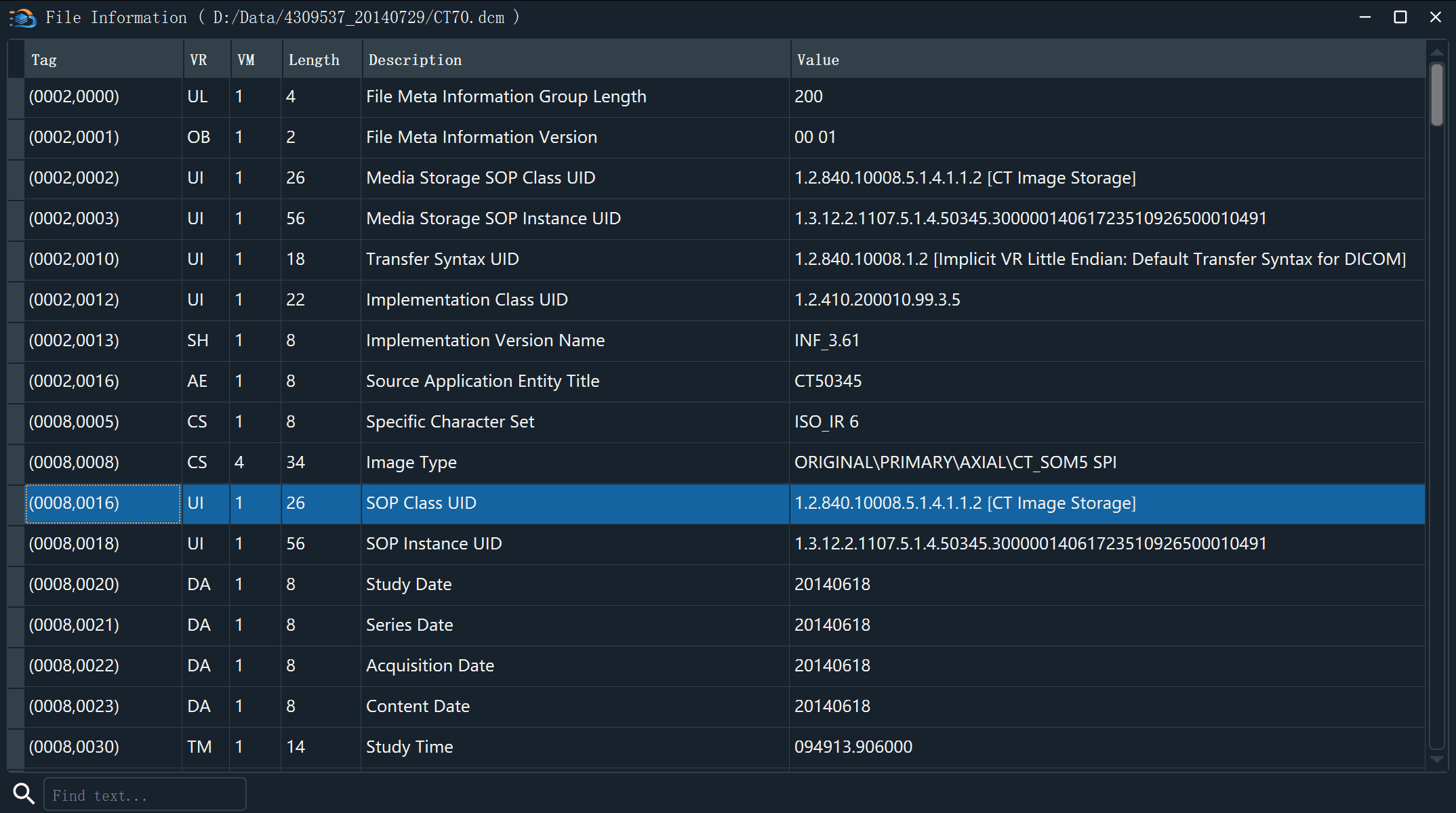
Tags that usually need attention:
| Tag | Meaning |
|---|---|
| (0010,0010) | Patient name |
| (0010,0020) | Patient ID |
| (0010,0030) | Patient birth date |
| (0010,0040) | Patient sex |
| (0008,0080) | Institution name |
| (0008,0090) | Referring physician name |
| (0008,0020) | Study date |
File level: VolumeShop can do this now
Since 1.7.1, VolumeShop exports anonymized copies itself: choose "Anonymize" in the Save menu and pick a scope - the current image, the current series, its study, its patient, or every series the data list is showing.
Names, patient IDs, birth dates, sex, institution and physician names are cleared, private tags are removed, and UIDs are regenerated consistently within a study. The original files are not modified; the anonymized copies go to a folder of their own.
For finer control (changing only a few tags, or wiring the data into your own pipeline), the tools below still apply:
pydicom (Python)
import pydicom

ds = pydicom.dcmread("IM-0001-0001.dcm")
ds.PatientName = "Anonymous"
ds.PatientID = "ANON-0001"
ds.PatientBirthDate = ""
ds.InstitutionName = ""
ds.save("IM-0001-0001-anon.dcm")
DCMTK (command line)
dcmodify -m "(0010,0010)=ANONYMOUS" -m "(0010,0020)=ANON-0001" IM-0001-0001.dcm
Common pitfalls
- Private tags: vendor private tags can also hold identifying information. Re-check the file with the file information window after anonymising.
- Burned-in annotation: some devices bake text into the pixel data itself. Editing tags does not help there — always confirm the image has no overlaid text.
- Process the whole study: a study is dozens to thousands of files. Do not ship it after editing a handful.
- Compliance: for clinical data, follow the ethics and data governance rules of your institution.